
Troubleshooting
Common problems, and what to do about them.
eBay CSV will not upload
Work down these in order. It is almost always the first one.
1. Check your policies and postal code
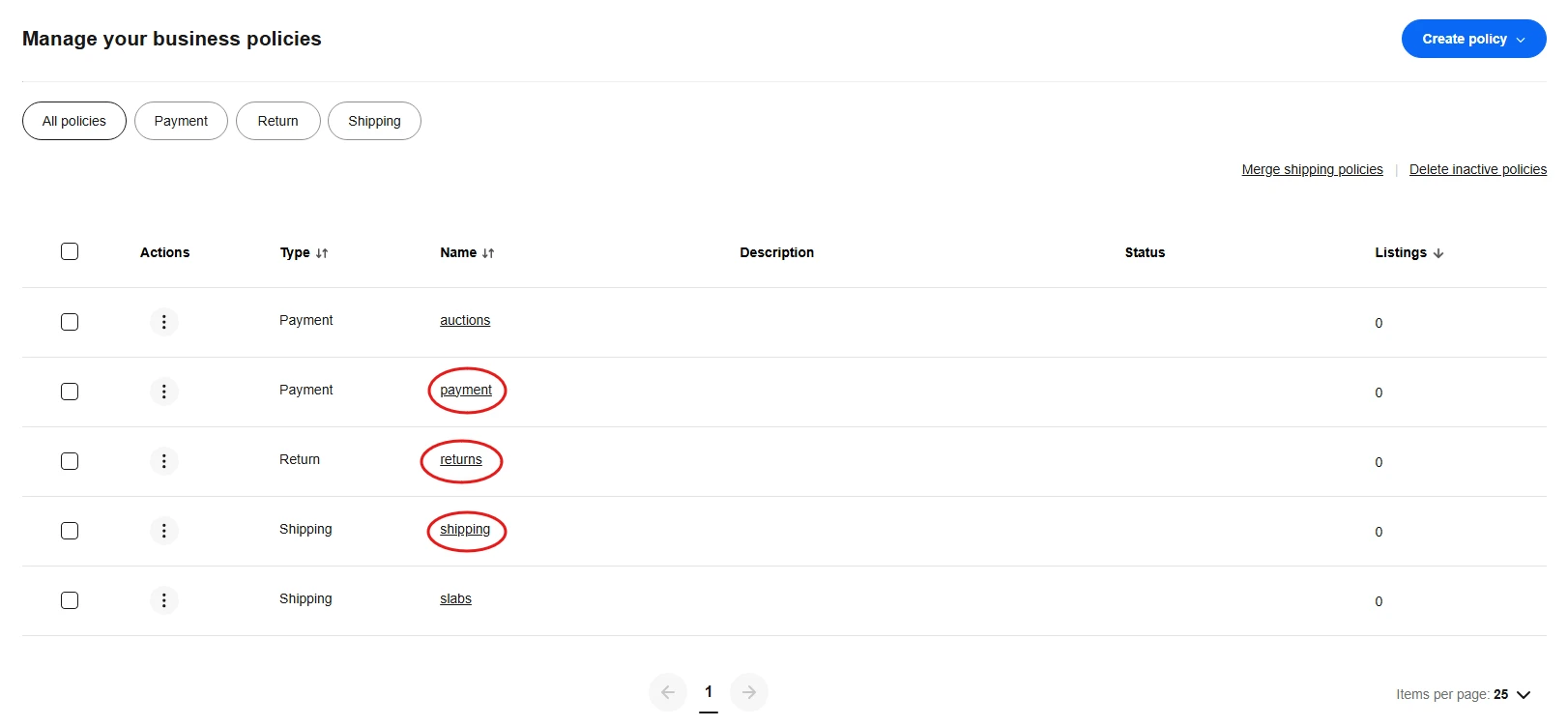
Configuration > eBay- •Add all three eBay policies - payment, shipping and return - and set one of each as your default.
- •The names must match eBay exactly, capital letters included.
- •Sync from eBay, in Business Policies, pulls your policies in with their exact names.
- •Enter your Postal Code under Shipping Settings on the same page.
- •A missing postal code (ZIP code or postcode) or a policy name that does not match is the most common reason a CSV is rejected.
2. Read the results file eBay gives you back
- •After the upload, download the results file from eBay.
- •Look for the ErrorMessage column. That is the one that tells you what happened.
- •Ignore the warnings. Only the error stops the listing.
- •In Excel that column is often hidden behind others - scroll across or unhide columns to find it.
3. Still stuck?
- •Send us the CSV you uploaded and the results file eBay gave back. Those two together are usually enough to spot it.
- •Reach us on the contact page, or open a ticket in Discord.
Somewhere else to look
- •Listings failing on Automatic eBay Inventory rather than a CSV? Those errors have their own section in the Automatic eBay Inventory guide.
- •Card matched to the wrong printing? Set the right one as a variant. Duplicates behaving oddly? See the duplicates guide.
- •General questions about credits, billing or your account are in the FAQ.